How To Use Copy Geometry in an Assembly in Creo Parametric
Watch the Video!
Need a video to help you through this process? Then check out the video on youtube!
In the world of complex product design, jumping back and forth between individual parts to check dimensions is a recipe for errors. This is where Top-Down Design becomes a game-changer.
In my latest video (which you can watch below), I break down one of the most powerful tools in the Creo Parametric 10.0 arsenal: Copy Geometry. Whether you are working on a simple bracket or a multi-component housing, understanding how to share geometry correctly is the key to building robust, associative models.
Why Use Copy Geometry?
Copy Geometry is an incredibly powerful command that allows a seamless top down design paradigm.. Copy Geometry provides a controlled, stable way to:
Communicate Design Intent: Ensure that the "Child" part updates automatically when the "Parent" skeleton or assembly changes.
Improve Performance: You don’t need to have every part fully loaded to see the reference geometry you need.
Collaborate Better: Different engineers can work on different parts of an assembly simultaneously, all referencing the same master surfaces or datums.
Key Steps Covered in the Tutorial
1. Setting the Stage: The Parent Model
Before copying geometry, it’s best to determine what you want your parent part to be. This acts as the "single source of truth" for your assembly’s critical dimensions, datums, and primary surfaces. In our example video, the CUP_CG.prt is our parent.
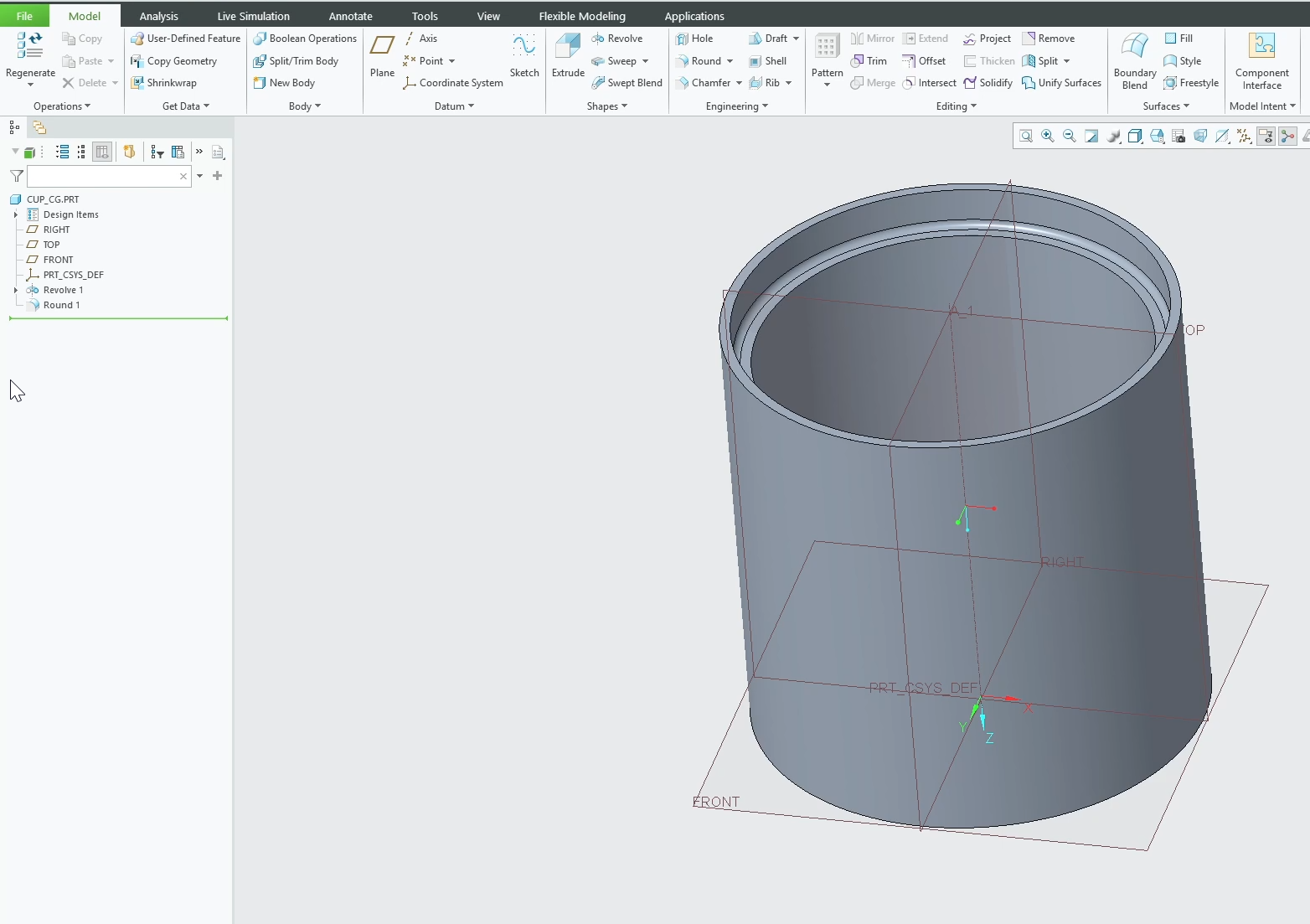
2. Selecting Your References
In Creo 10.0, the UI for Copy Geometry is cleaner than ever. In our example, we need to select the surfaces that will assist us in making the lid. You are the decision maker here!
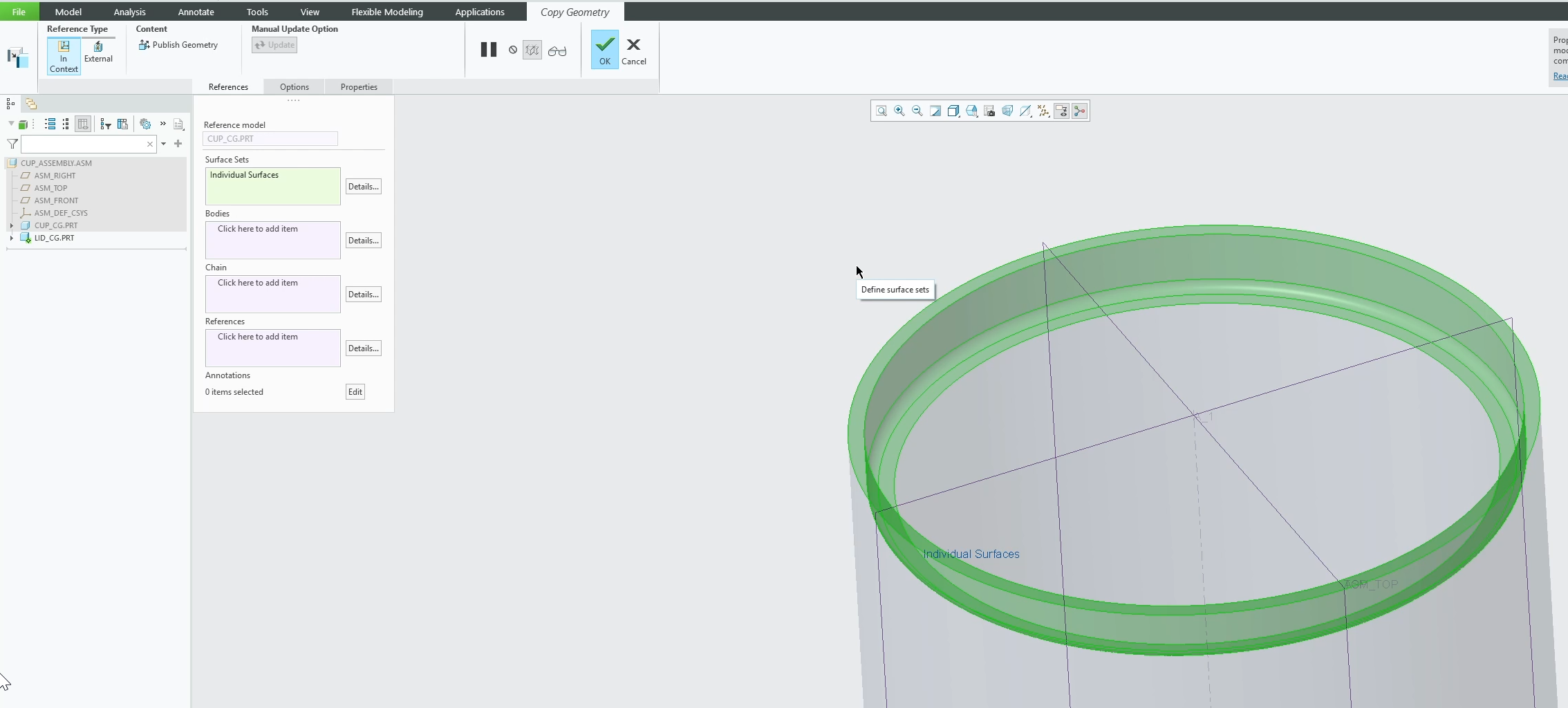
3. Managing Dependencies
One of the most important settings is whether your Copy Geometry is how the updates are handled.
Automatic: The child part updates when the source changes automatically.
Manual: The link is updated only when you tell it to.
No Dependency: The links are completely broken.
4. Testing the Laws of the Copy Geometry
This command has two specific laws. They are as follows:
This command copies geometry associatively from one part to another. If the parent updates, the child updates depending on what dependency setting is enabled.
The assembly position is recorded. If the parent moves in the assembly,
Final Thoughts
Mastering Copy Geometry is the first step in moving from a "CAD Drafter" to a "CAD Power User." Once you trust your assembly structure, you can design with more confidence and far less rework.
What is your biggest challenge with Top-Down Design in Creo? Let me know in the comments below, or reach out if there’s a specific feature you’d like me to cover in the next video!I
Next Steps: Secure Top-Down Links & Validate Assembly Clearances
Establishing stable interpart references is the secret to building scalable, robust assemblies. Protect your top-down design architecture and verify your geometric relationships with these advanced Creo tutorials:
Upgrade to Structured Geometry Sharing: Take your assembly routing to the next level by packaging and publishing explicit geometric interfaces before referencing them downstream in How to Use Publish and Copy Geometry in Creo Parametric.
Verify Alignment and Component Spacing: Ensure your associative geometry changes haven't caused cross-component interferences by mastering the Measure Tool in Creo Parametric.
Scale These Workflows Across Your Engineering Team
Standard software tutorials only go so far when facing unique, real-world production bottlenecks. If your design team is struggling with workflow inefficiencies, modeling errors, or assembly instability, we can help.
At JIVE Engineering, we provide specialized, bespoke Corporate Engineering & CAD Training customized entirely around your company’s native production files and internal design standards. We move your team past basic button-clicking and equip them to build robust, failure-proof modeling workflows that save hours of engineering time.
Explore Our Custom Training Programs or Contact Our Team today to discuss your team's specific training needs.