Essential Creo Parametric Sketcher Tips and Tricks
Watch the Video!
Need a video to help you through this process? Then check out the video on youtube!
Every great 3D model starts with a 2D sketch. In PTC Creo, the Sketcher is a powerful environment, but it can be frustrating if you don’t know the "hidden" shortcuts and best practices that professionals use to stay efficient.
Why the Sketcher Matters
A robust sketch is the difference between a model that updates perfectly and one that explodes when you change a single dimension. In this tutorial, we focus on efficiency and intent.
Key Tips Covered in the Video
1. Mastering Constraints (Intent)
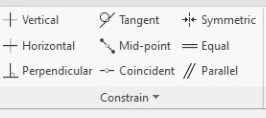
Constraints are the "rules" of your sketch. We show you how to let Creo's "Auto-Constraint" work for you—and when to take manual control. Whether it’s making lines parallel, tangent, or symmetric, getting your constraints right first means fewer dimensions to manage later.
2. The Escape Key
Tired of hitting the middle mouse button to exit a command? The escape key is your best friend!
3. Modifying Multiple Dimensions at Once
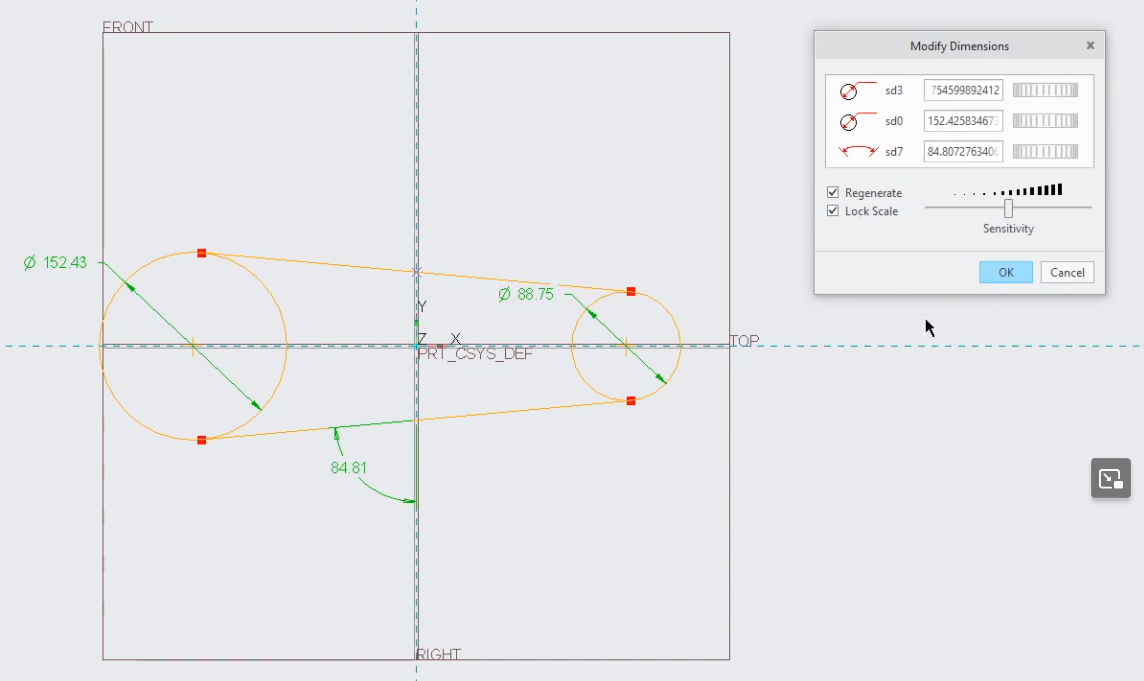
Tired of your sketch "flipping" inside out when you change a small dimension to a large one? We show you the Modify tool trick. This allows you to lock the scale of the entire sketch while you adjust multiple dimensions simultaneously.
4. Hidden Shortcuts
From middle-mouse button clicks to rapid dimensioning, we pull back the curtain on the workflow shortcuts that make you look like a pro and feel like one, too.
Stop Fighting Your Sketches
The goal of this tutorial isn't just to show you how to draw shapes; it's to show you how to build intelligent geometry. By the end of this video, you'll have the confidence to tackle complex profiles without the dreaded "over-constrained" warning popping up.
Next Steps: Optimize Your CAD Environment & Advanced Sketching
Building robust sketches is the baseline for bulletproof parametric models. Supercharge your workflow speed and expand your geometric modeling capabilities with these essential Creo guides:
Configure Your Ideal Modeling Environment: Ensure your sketch snapping, reference lines, and display parameters are optimized right out of the box using our guide on the Best Settings to Change in Creo.
Project and Wrap Complex Sketch Profiles: Take your stable sketch geometry and learn how to map complex layouts, branding, or part numbers smoothly onto curvature with How to Apply Text to Any Surface in Creo Parametric.
Scale These Workflows Across Your Engineering Team
Standard software tutorials only go so far when facing unique, real-world production bottlenecks. If your design team is struggling with workflow inefficiencies, modeling errors, or assembly instability, we can help.
At JIVE Engineering, we provide specialized, bespoke Corporate Engineering & CAD Training customized entirely around your company’s native production files and internal design standards. We move your team past basic button-clicking and equip them to build robust, failure-proof modeling workflows that save hours of engineering time.
Explore Our Custom Training Programs or Contact Our Team today to discuss your team's specific training needs.