How to Use the Measure Tool in Siemens NX - Complete Guide
If you’re still using the Measure command just to check the distance between two faces, you’re missing out on some of the most powerful tools in Siemens NX . The Measure tool isn't just a "digital ruler"—it's a data-gathering powerhouse that can drive your entire design through associative expressions.
In our latest in-depth guide, we dive deep into the consolidated Measure command to show you how to extract more intelligence from your models.
Why the "New" Measure Tool is a Game-Changer
In older versions of NX, you had to switch between multiple commands: Measure Distance, Measure Angle, Measure Body. Now, everything is consolidated into a single, context-sensitive UI. You select objects first, and NX tells you everything it knows about them.
The amount of information regarding this tool is vast; therefore, we encourage you to watch the video. Here, we will show you some highlights.
Measuring Tool Highlights
1. Associative Measurements
One of the most powerful things you can do with measurements is learning how to make your measurements Associative. Instead of just seeing a number on the screen, you can save that measurement as an expression.
The Result: If your model changes, the measurement expression updates automatically. You can then use that expression to drive other dimensions in your part or assembly.

2. Mass Properties
You can find the mass properties of any item. Just make sure that you have your filter set accordingly! If you are an NX user of previous versions, you will find most of the settings still here.
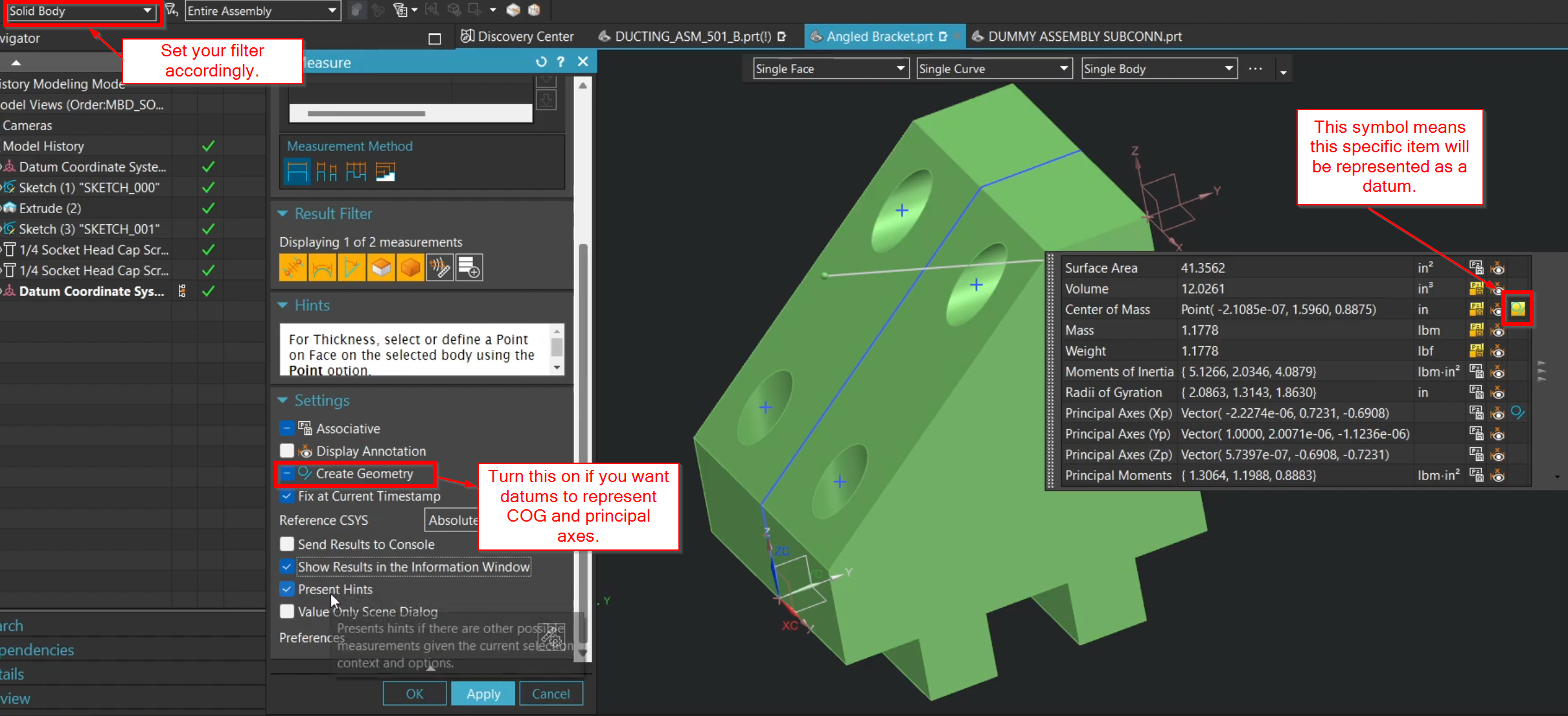
3. Projected Distance
One command many NX users miss is the Projected Distance in older versions of NX. This command is still here, but you have to follow a certain workflow for it!

4. Measurement Methods
Measurement methods are an awesome way to measure multiple things without having to reset the command. Need to verify that two items are the same thickness? You can do that with the right measurement method!

Work Smarter, Not Harder
Stop manual data entry. By mastering the advanced settings of the Measure tool, you ensure your design reviews are accurate and your parametric models are robust. Check out the video to see a full in depth explanation though!